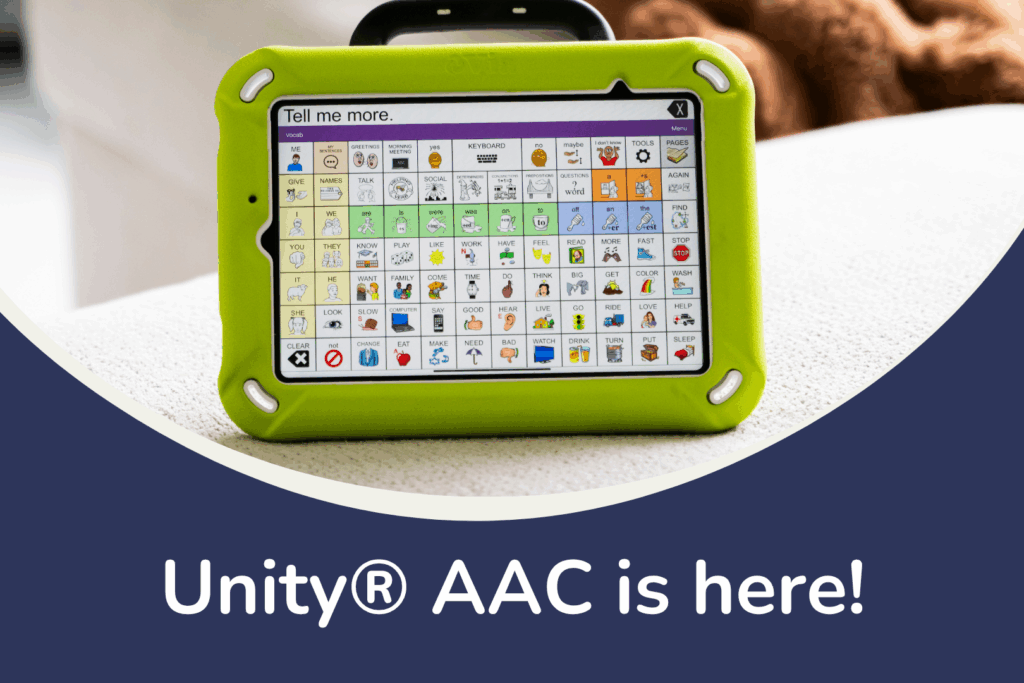
Unity® AAC

Unity® AAC is Here: Research-Based Communication Comes to iOS 

Reading Time: 5 minutes

The vocabulary system that’s helped thousands with communication is now available on iOS.

Blog images 5 1

We’re excited to announce that Unity®, the research-backed vocabulary system trusted by AAC users worldwide, is now available as an iOS app.

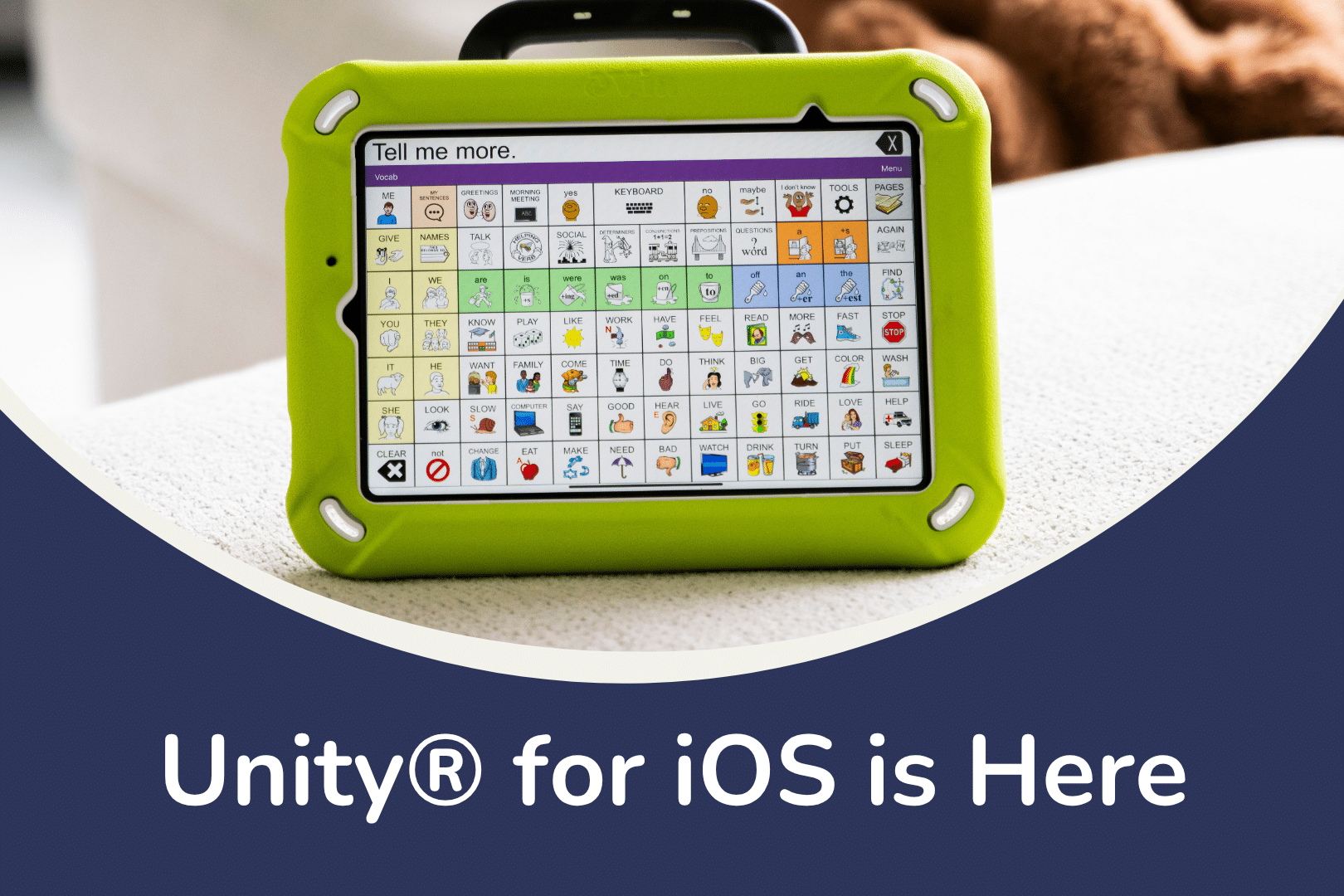
Meet Unity® AAC: your voice, your way, now on the iOS platform you know and love.

For decades, Unity® has been the foundation of communication for thousands of people using AAC. Its unique approach using multi-meaning icons and consistent motor patterns has helped communicators build language skills and achieve their communication goals.

What is Unity®

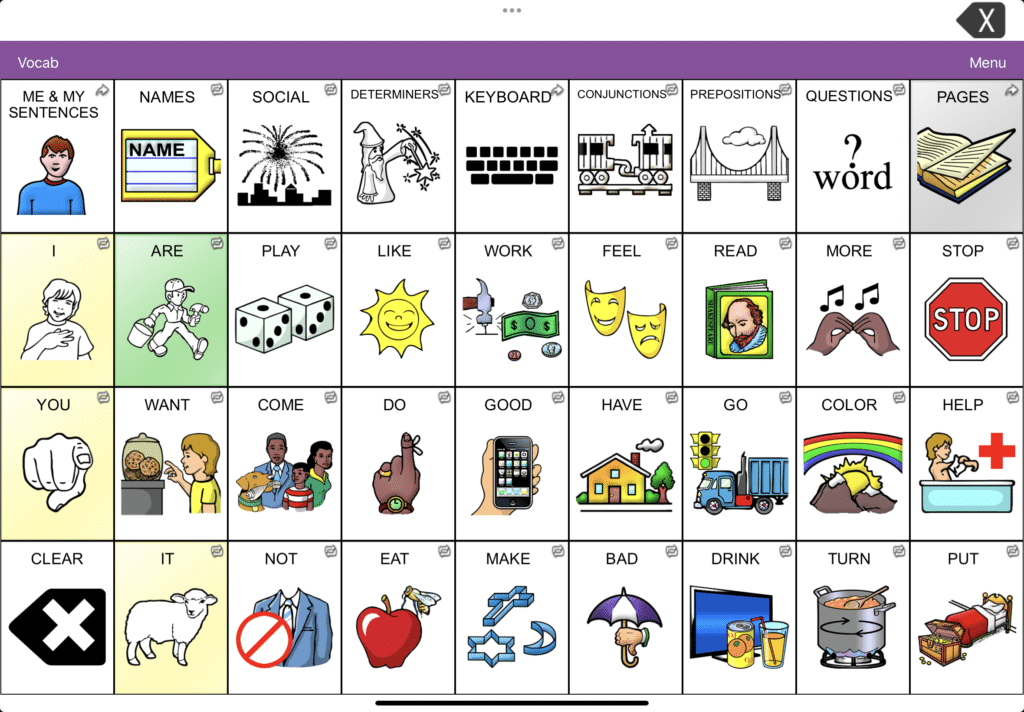
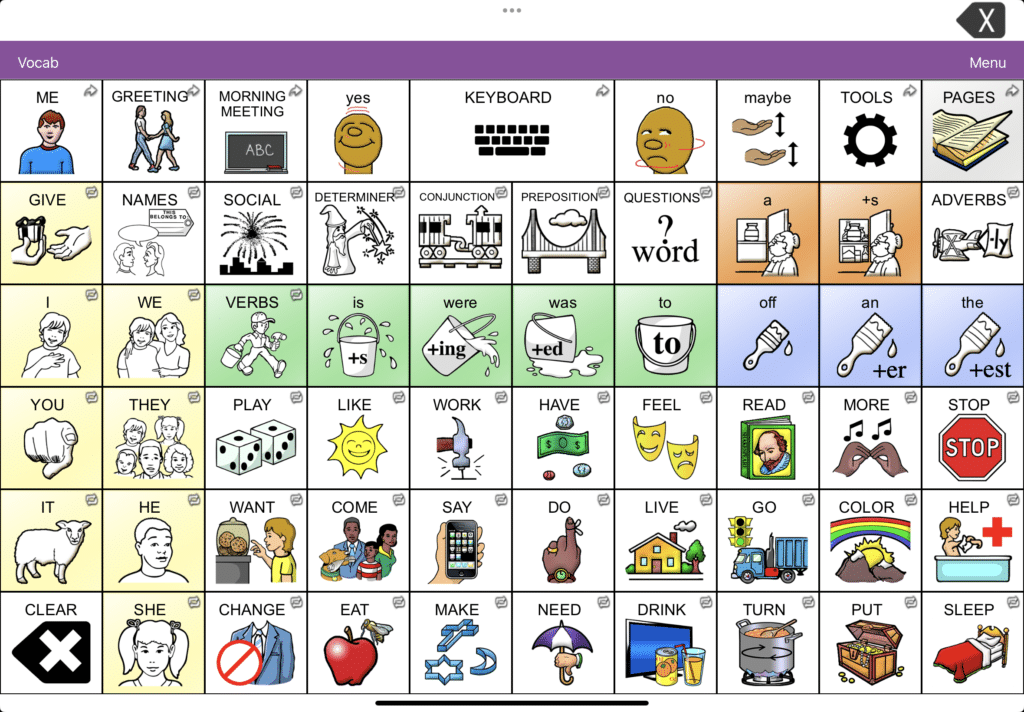
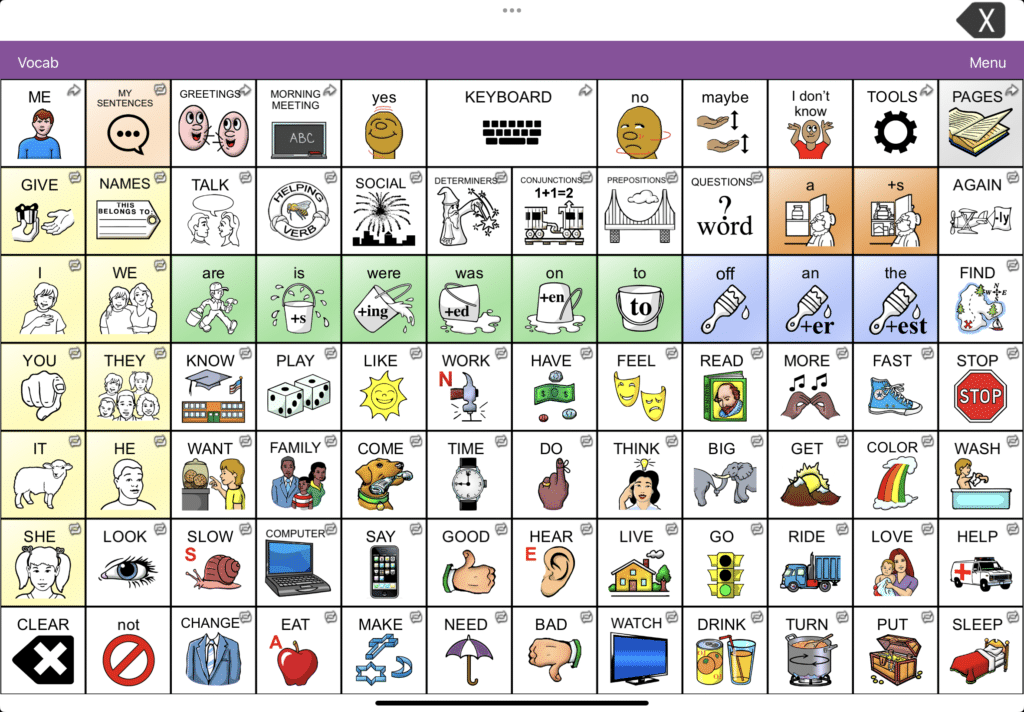
Unity® is a language system that uses multi-meaning icons arranged in a consistent organisational structure with symbol family trees.

Words have a unique motor pattern that never changes, allowing users to develop automatic recall and focus on communication rather than navigation.

The system supports language development – from first words to conversational communication.
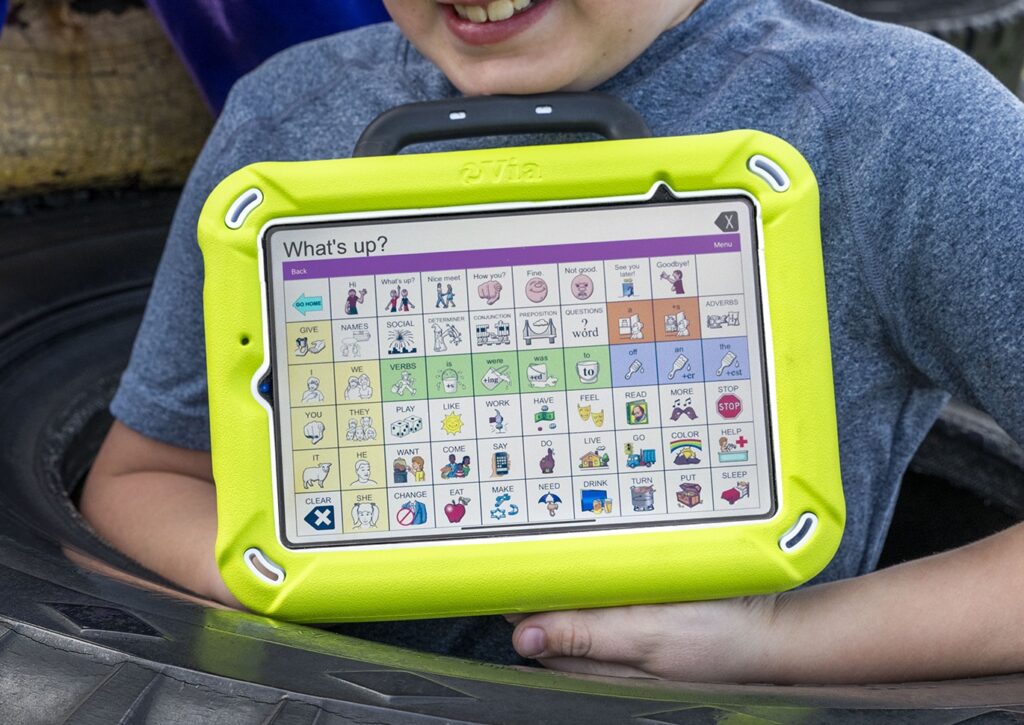
Young boy holds Via Mini AAC Device with Unity App software

Unity® can be a great choice for: 

  • Individuals with apraxia, cerebral palsy, autism, Down syndrome, and other diagnoses involving receptive or expressive language needs
  • Beginner and experienced communicators across all ages and literacy levels
  • People seeking motor planning consistency with grid size variety.

Why was Unity® on iOS our #1 Requested App? 

Unity® AAC has been one of our most requested apps for years.  

With Unity® AAC, you’ll find: 
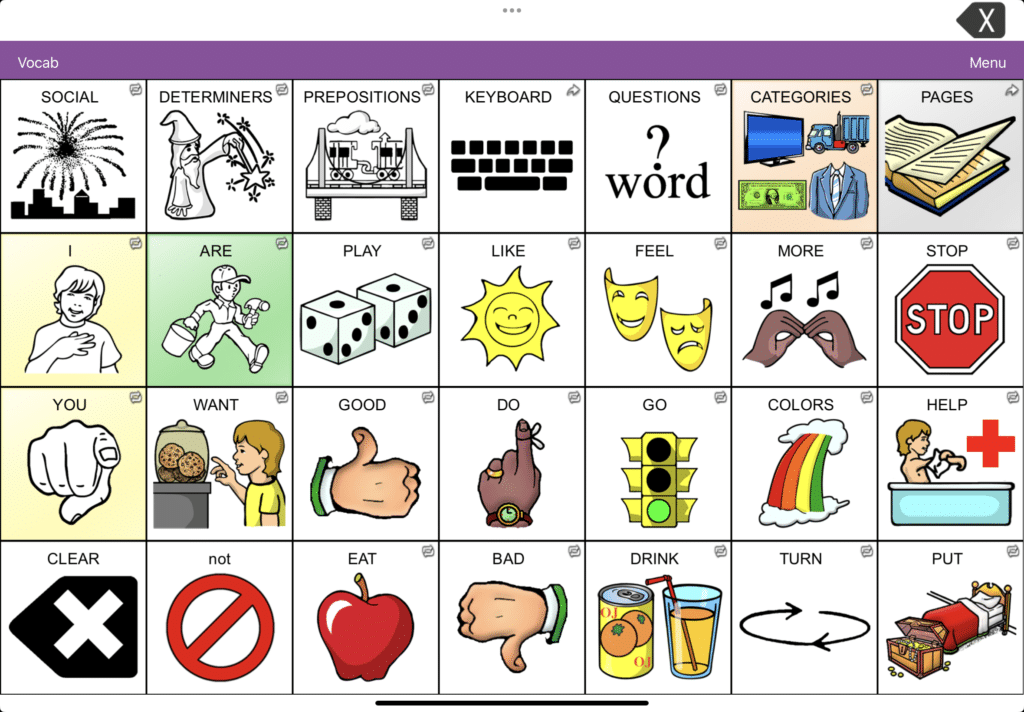
  • Accessibility: Access Unity® vocabulary on your personal iOS or Via device  
  • Convenience: Familiar iOS interface with the reliability of research-backed vocabulary  
  • Opportunity: Both 1-Hit and Sequenced options allow communicators to develop their skills over time 
  • Flexibility: Choose from multiple grid sizes (28, 36, 60, 84) to match individual needs – addressing the AAC community’s request for “an iOS Minspeak system vocabulary with grid size variety.”

“This Unity® AAC app does not disappoint! It provides users with a robust AAC app that can support emergent to advanced communicators all within the same app. It allows users to select the grid size and version that best meets their needs as one can choose from the version that has access to only frequently used words to the full version that gives access to complex vocabulary and all parts of speech. I highly recommend it!
Anonymous Speech Language Pathologist

New Features Exclusive to the Unity® App 

Unity® AAC includes several new and improved features, not currently available on traditional devices: 

  • Reduced keystrokes: Working to get word access down to three touches throughout the vocabulary 
  • Enhanced organisation: Drop down activity row restructure for improved visual layout and faster access to nouns
  • iOS-specific features: Learning word prediction, movable cursor in speech display bar, and integrated data collection with Realize Language™. 
Unity logo

Try Before You Buy – Unity Discover® 

Curious to try Unity®?
Try Unity AAC Discover®
– our free app that provides access to Unity® vocabulary for exploration.
Unity Discovery App e1754363865173

This free app gives you a chance to experience the Unity® approach before committing to the full version. 
When you’re ready, activate your 30-day free trial to access all Unity® AAC features and vocabulary options (28, 36, 60, and 84 grid layouts). 

Supporting Your Unity® AAC Journey 

Our team is here to assist you throughout your Unity® experience: 

  • Dedicated local Consultants providing personalised guidance 
  • Partner Program for speech pathologists  – coming soon!
  • Technical skills support and online training – coming soon!
  • Extensive online resources, including:

Common Questions 

Q: What about LAMP Words For Life® users?  

A: If you know LAMP Words For Life®, you’re already familiar with Unity® – and vice versa! Though they are similar, try not to compare these two apps directly. Unity offers grid size variety that complements the LAMP® approachh. 

Q: Can Unity® AAC work as a backup?  

A: The app can serve as a backup for your Via® device. But please know that the app has some differences to Unity® on NuVoice® so is not designed as a backup for an Accent® device. 

Q: Who should consider Unity® AAC?  

Q: Unity® AAC is great for: 

  • clinicians who love Unity® but find NuVoice® a little less user friendly,
  • clinicians who want to use the LAMP therapy approach with a Minspeak® system providing different grid sizes,
  • and anyone who prefers iOS platforms..

Getting Started 

Download Unity AAC Discover® from the App Store today to begin exploring.
If Unity AAC Discover® works well for you, you can activate your 30-day trial of the full Unity® AAC app. 
Purchase is available only through the Apple App Store. 

Young boy smiles and holds a yellow AAC device with Unity® app

Our team is here to help you make the most of your communication device and supporting apps.
Whether you need help with new software or want to explore new ways to optimise your AAC setup, we’re just a call or click away.

Contact us:

Your AAC device is an important part of everyday life, supporting conversations, learning, and connection with others. And, just like any piece of technology you rely on, it performs best when it’s well looked after! In this blog, we’ll share our top AAC device maintenance tips – including practical care, maintenance, and tech advice to help ensure your device stays reliable, responsive, and ready when you need it!

Here are our top tips for your AAC device maintenance.

#1: Clean Your Device Regularly

Let’s face it – devices get dirty. Whether you’re at school, work, or just having dinner, your device comes along for the ride. Give it some cleaning attention regularly to keep it working well.

For light cleaning, use a soft, lint-free cloth on the touchscreen. For deeper cleaning, use a slightly damp, lint-free cloth, then dry the screen with another soft cloth. You can find more detailed cleaning tips in your device manual.

Good to know: Keyguards can go in the dishwasher!

#2: Look After Your Battery

Your device comes with a specific charger – always use that one. Try to charge your battery before it drops to 0%. Charging when your battery is above 10% can extend its life significantly. For best results, charge your device upright at room temperature on a hard surface.

Tip: Turn off your device for faster charging.

#3: Use Sleep Mode and Shut Down Wisely

We encourage keeping your device with you and ready to use for conversations throughout the day. However, there are smart times to use sleep mode or shut down completely.

Set your auto-sleep to five minutes or less. Use sleep mode when you won’t be using your device for short periods, like during swimming.

Remember that sleep mode uses about 2% of battery per hour. Consider turning off your device completely during longer breaks, like overnight.

#4: Avoid Overheating

Like most technology, your device works best when it’s not too hot. Take breaks from heat and avoid charging if your device feels warm. Move to shade or air conditioning rather than trying to cool it with water.

Tip: Keep a low-tech communication board handy for water activities.

#5: Keep Your Software Updated

Software updates bring new features and vocabulary to improve your communication experience. Connect to WiFi and follow the prompts in your settings menu to get these improvements. Updates also help your device run more smoothly overall.

Tip: Plug in your device during updates to protect your battery.

#6: Protect Your Screen

Your screen is essential for accessing all your communication options. Protect it from scratches, moisture, and spills with a screen protector. This also reduces glare and reflections, making it easier to see your buttons.

Visit our online store to see screen protector options for your device.

#7: Consider a Protective Case

Your device is built to be durable and handle daily life. (If you haven’t already), you might try an extra protective case designed specifically for your device model. These cases provide additional security for active use at home and out in the community.

#8: Review Your Access Needs

People change, and your needs change too. It might be time to check that you’re still accessing your device in the most comfortable and efficient way possible.

Connect with your support team (or ours!) to consider adjustments like:

  • Repositioning your device
  • Adjusting your wheelchair setup
  • Trying new vocabulary settings
  • Recalibrating eye gaze (if applicable)
  • Using a keyguard for more accurate selection

Our local consultants are happy to discuss access questions to help you communicate at your best.

#9: When Technical Issues Arise

If you’re experiencing glitches, try restarting your device first – this solves most technical problems.

If you’re still having trouble after a restart, our support team is here to help. Contact us by phone, email, or through our website, and we’ll work together to get your AAC device maintenance issue resolved – and your device running smoothly again.


Need a little support with your AAC device maintenance?

Our team is here to help you make the most of your communication device. Whether you need help with AAC device maintenance or want to explore new ways to optimise your AAC setup, we’re just a call or click away.

Contact us:



What's Next?

Connect with your local consultant to discover your AAC options!

AAC Consultant Lilla
AAC Consultant Delara
AAC Consultant Morgan