
a blue and white logo representing LAMP WFL App with the text 'all about the lamp wfl app upgrade'

LAMP WFL App is Getting an Upgrade

Reading Time: 3 minutes
Blog images 1

Ready to try the new and improved LAMP Words for Life app?

We’re excited to offer all LAMP WFL app users a NEW version with more languages and features to better support your communication.

While your current app will continue to work, it will be removed from the App Store this September. This means you won’t be able to reinstall it or receive updates on your device after this date.

By migrating to the new app, you’ll get:

  • Additional languages and features
  • Australian dialect options (coming late 2025)
  • Ongoing updates and improvements
  • Continued access to your communication tools

Making the Transition

  • Free for current users: Switch to the new LAMP WFL version at no cost.
  • The process is simple: Just follow our step-by-step instructions below.
  • Your access continues: While your current app will continue to work, upgrading before September will ensure uninterrupted access to your communication tools.
  • Support is available: Our customer service team is ready to assist with your transition.

How to Migrate to LAMP WFL Discover

How to migrate: 

1. Open the original LAMP WFL app on your device

2. A pop-up will appear letting you know about the Upgrade

3. Click the link in this pop-up to open a webform

4. Complete the webform with your information

5. Once the in-app form is completed, your promo code will be emailed to you

6. Visit https://accounts.prc-saltillo.com/ on a web browser and login to – or create – a PRC-Saltillo account

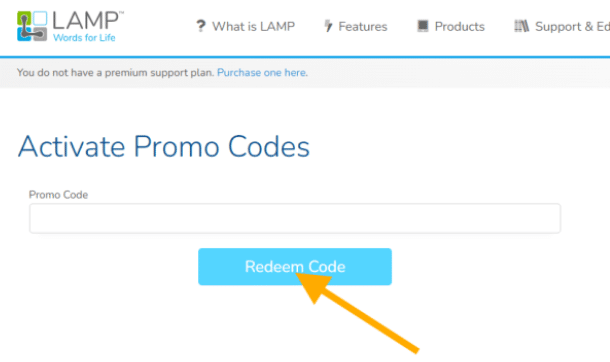
7. Once logged in, visit https://lampwflapp.com/promocodes and enter your promo code (you’ll receive this in your email)

8. Click ‘Redeem Code’ and you’ll receive confirmation of activation.
Screenshot 2025 06 17 142037

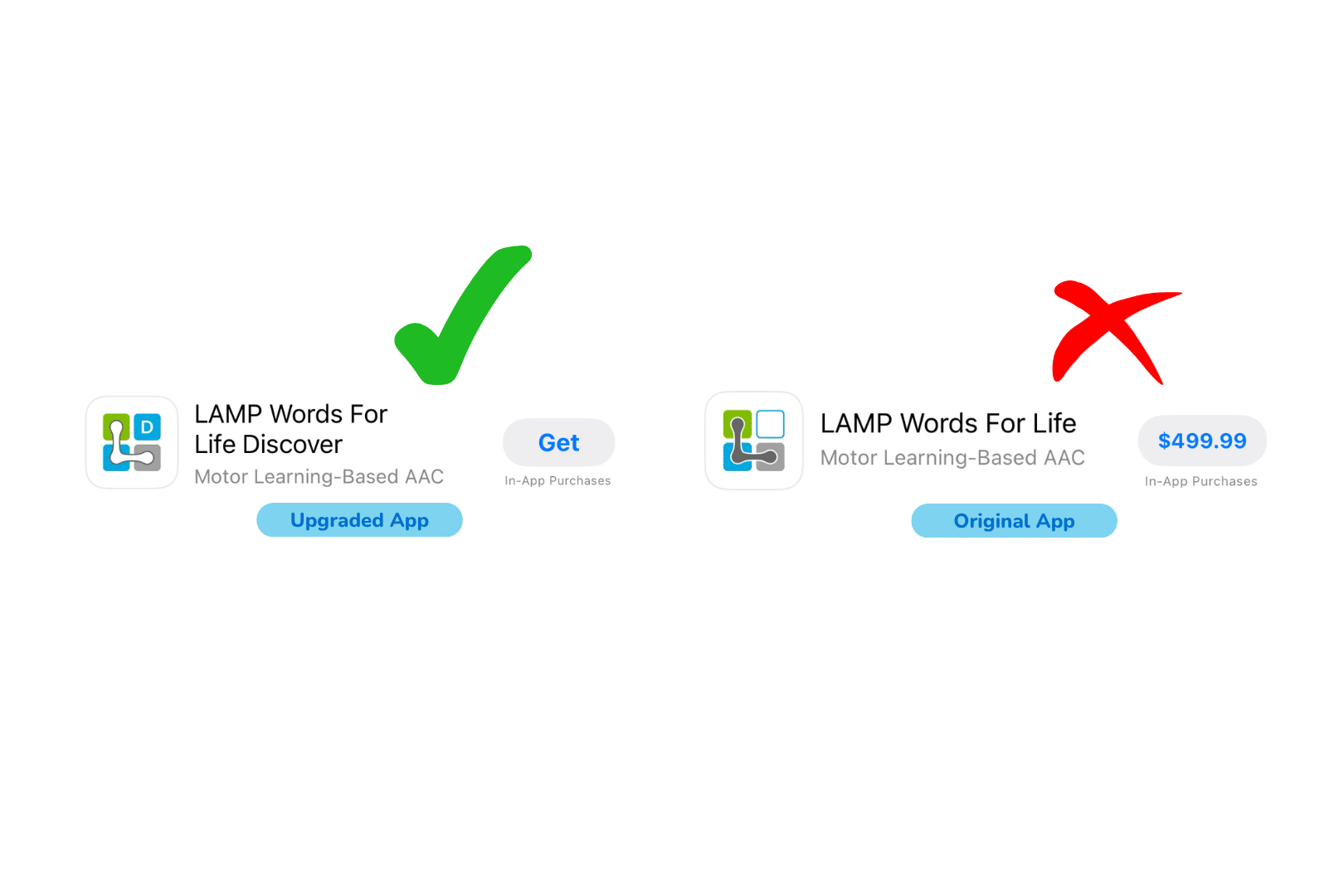
9. Go to the App Store and download the new LAMP WFL Discover app (please do not download the LAMP WFL priced at $499.99 AUD). 
Blog images 1 1

10. Open the new LAMP WFL Discover app and sign in to your PRC-Saltillo account to unlock the app. 

Frequently Asked Questions

Q: Will I lose my current settings?

A: We recommend backing up your vocabulary before transferring to the new app. No current settings or vocabularies will be migrated over to the new app, so your current settings should be noted and stored. Please follow our step-by-step guide for saving and backing up your settings in this video: LAMP Words for Life Back Up Tutorial

Q: Do I need to pay again?

A: No. Current users can switch to the new LAMP WFL version at no cost.

Q: What if I need help?

A: Our customer service team is ready to assist with your transition. Contact us at support@liberator.net.au with any questions.

Q: When will the current app be removed?

A: The current app will be removed from the App Store this September, 2025. While your existing installation will continue to work, you won’t be able to reinstall it or receive updates after this date.

Q: Do you know what iOS versions the app is compatible with?

We have heard from a couple of customers who have older devices and cannot access the LAMP WFL Discover app. It’s important to note: you need to have at least iOS 15 to see the LAMP WFL Discover app in the app store.

Need help?

If you have any questions, or any troubles with the prompts above, our team are here to help.

Download a step-by-step guide here.

Contact us at 02 9124 9945 or email support@liberator.net.au.

Sign up to our mailing list for regular news, updates and technical tips.

Your AAC device is an important part of everyday life, supporting conversations, learning, and connection with others. And, just like any piece of technology you rely on, it performs best when it’s well looked after! In this blog, we’ll share our top AAC device maintenance tips – including practical care, maintenance, and tech advice to help ensure your device stays reliable, responsive, and ready when you need it!

Here are our top tips for your AAC device maintenance.

#1: Clean Your Device Regularly

Let’s face it – devices get dirty. Whether you’re at school, work, or just having dinner, your device comes along for the ride. Give it some cleaning attention regularly to keep it working well.

For light cleaning, use a soft, lint-free cloth on the touchscreen. For deeper cleaning, use a slightly damp, lint-free cloth, then dry the screen with another soft cloth. You can find more detailed cleaning tips in your device manual.

Good to know: Keyguards can go in the dishwasher!

#2: Look After Your Battery

Your device comes with a specific charger – always use that one. Try to charge your battery before it drops to 0%. Charging when your battery is above 10% can extend its life significantly. For best results, charge your device upright at room temperature on a hard surface.

Tip: Turn off your device for faster charging.

#3: Use Sleep Mode and Shut Down Wisely

We encourage keeping your device with you and ready to use for conversations throughout the day. However, there are smart times to use sleep mode or shut down completely.

Set your auto-sleep to five minutes or less. Use sleep mode when you won’t be using your device for short periods, like during swimming.

Remember that sleep mode uses about 2% of battery per hour. Consider turning off your device completely during longer breaks, like overnight.

#4: Avoid Overheating

Like most technology, your device works best when it’s not too hot. Take breaks from heat and avoid charging if your device feels warm. Move to shade or air conditioning rather than trying to cool it with water.

Tip: Keep a low-tech communication board handy for water activities.

#5: Keep Your Software Updated

Software updates bring new features and vocabulary to improve your communication experience. Connect to WiFi and follow the prompts in your settings menu to get these improvements. Updates also help your device run more smoothly overall.

Tip: Plug in your device during updates to protect your battery.

#6: Protect Your Screen

Your screen is essential for accessing all your communication options. Protect it from scratches, moisture, and spills with a screen protector. This also reduces glare and reflections, making it easier to see your buttons.

Visit our online store to see screen protector options for your device.

#7: Consider a Protective Case

Your device is built to be durable and handle daily life. (If you haven’t already), you might try an extra protective case designed specifically for your device model. These cases provide additional security for active use at home and out in the community.

#8: Review Your Access Needs

People change, and your needs change too. It might be time to check that you’re still accessing your device in the most comfortable and efficient way possible.

Connect with your support team (or ours!) to consider adjustments like:

  • Repositioning your device
  • Adjusting your wheelchair setup
  • Trying new vocabulary settings
  • Recalibrating eye gaze (if applicable)
  • Using a keyguard for more accurate selection

Our local consultants are happy to discuss access questions to help you communicate at your best.

#9: When Technical Issues Arise

If you’re experiencing glitches, try restarting your device first – this solves most technical problems.

If you’re still having trouble after a restart, our support team is here to help. Contact us by phone, email, or through our website, and we’ll work together to get your AAC device maintenance issue resolved – and your device running smoothly again.


Need a little support with your AAC device maintenance?

Our team is here to help you make the most of your communication device. Whether you need help with AAC device maintenance or want to explore new ways to optimise your AAC setup, we’re just a call or click away.

Contact us:


What's Next?

Connect with your local consultant to discover your AAC options!

AAC Consultant Lilla
AAC Consultant Delara
AAC Consultant Morgan